Find Target in Page in Selenium IDE for Chrome
How to Select Target in Page manually in Selenium IDE for Chrome?
✍: FYIcenter.com
 If you have a page element locator specified in a test step,
you can used the "Select Target in Page" function
to verify is the element exists or not on the page.
If you have a page element locator specified in a test step,
you can used the "Select Target in Page" function
to verify is the element exists or not on the page.
1. Start Chrome browser and visit sqa.fyicenter.com.
2. Open Selenium IDE extension with a new project.
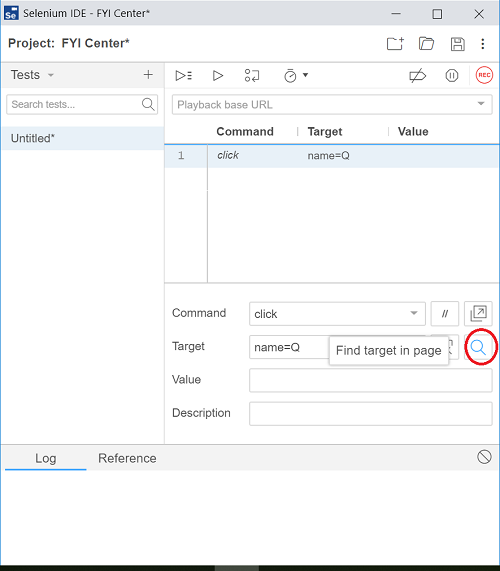
3. Select "click" as the Command. And enter "name=Q" in the "Target" field.
4. Click "Find target in page" icon near the end of the "Target" line. You see the search input element is highlighted on the page in the browser.
So "Find target in page" allows you identify a page element with a given locator.
⇐ Select Page Element in Selenium IDE for Chrome
2019-07-23, ∼7867🔥, 0💬
Related Topics:


