
<< Test Frame - Why window declarations make your tests robust | Test Frame - testing such as ActiveX >>
Test Frame - Preparing to record window declarations
<< Test Frame - Why window declarations make your tests robust | Test Frame - testing such as ActiveX >>
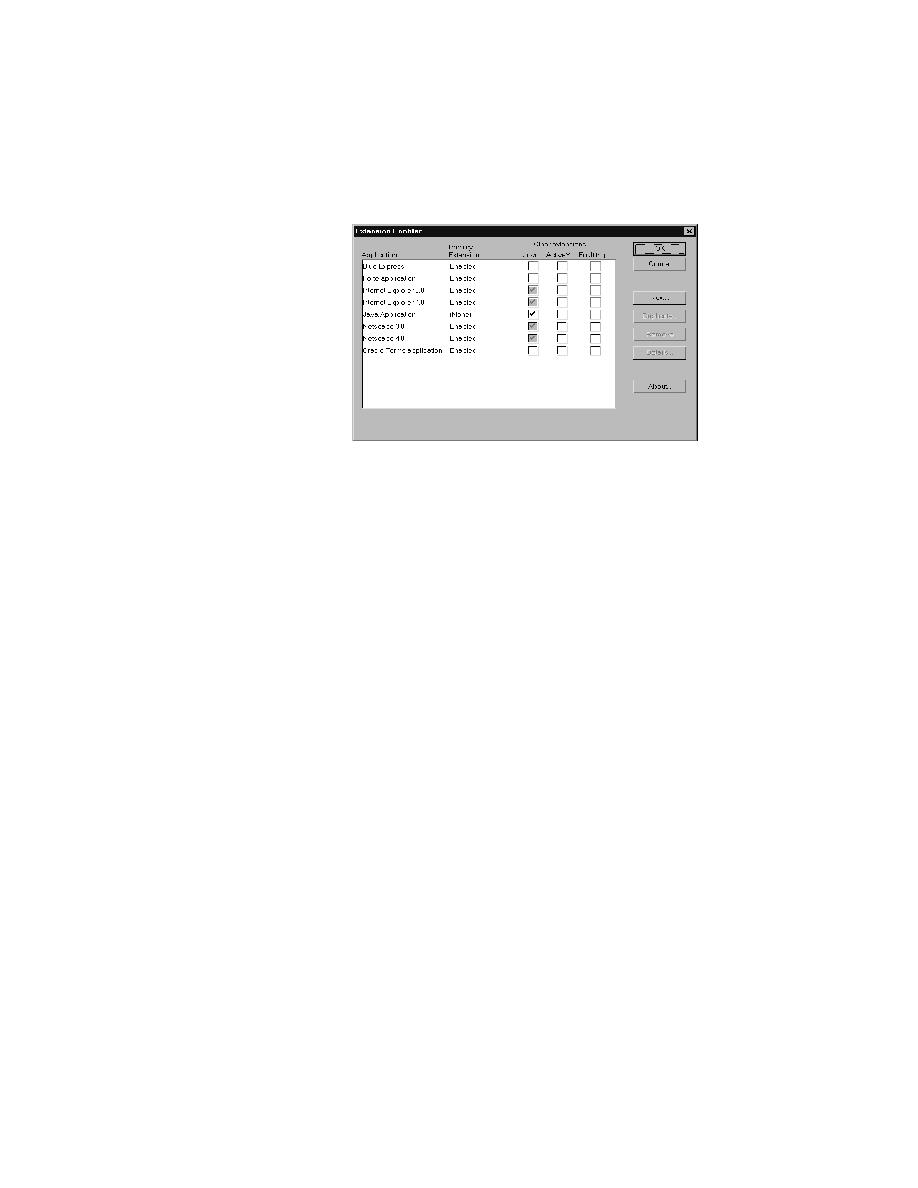
enabled. In the Primary Extension field for a browser, choose Enabled.
ActiveX or fault trapping. We recommend that you do not turn on fault
trapping until you really need it.
support on a host
machine
dialog. Be advised that there is overhead associated with having more than
one browser extension enabled, so do so only if you are actually testing more
than one browser in an automated session.
including the browser extensions, as in this example: