Test Cases - How to edit a property set
124
User's Guide
5 D
ESIGNING
AND
R
ECORDING
T
ESTCASES
Recording the verification stage
3
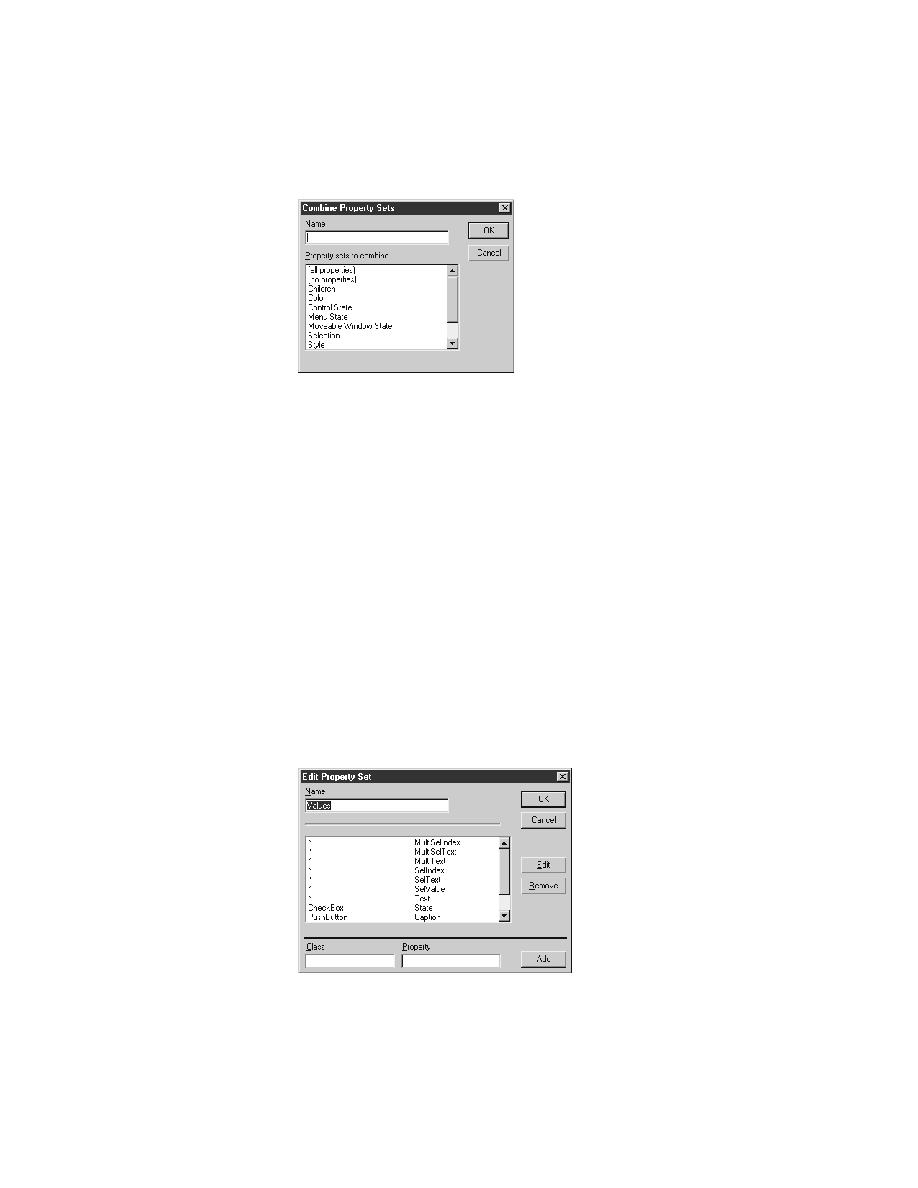
Specify a name for the new property set in the Name field.
4
Select at least two property sets from the Property Sets to Combine list
box and click OK.
5
The Combine Property Sets dialog closes and the new property is
displayed in the Property Sets list box, as are the constituent sets.
Note If you modify any of the constituent sets, the combined set will
be modified as well.
How to edit a property
set
You can modify an existing property set at any time to rename it or to edit the
class-property pairs that compose it.
Procedure To edit an existing property set:
1
Select Options/Property Sets or the Define pushbutton on the Verify
Window dialog.
The Property Sets dialog opens, as shown on page 121.
2
Select a property set from the Property Sets list box and click Edit.
The Edit Property Set dialog opens. The following figure shows how the
dialog looks when the Values property set is selected.
