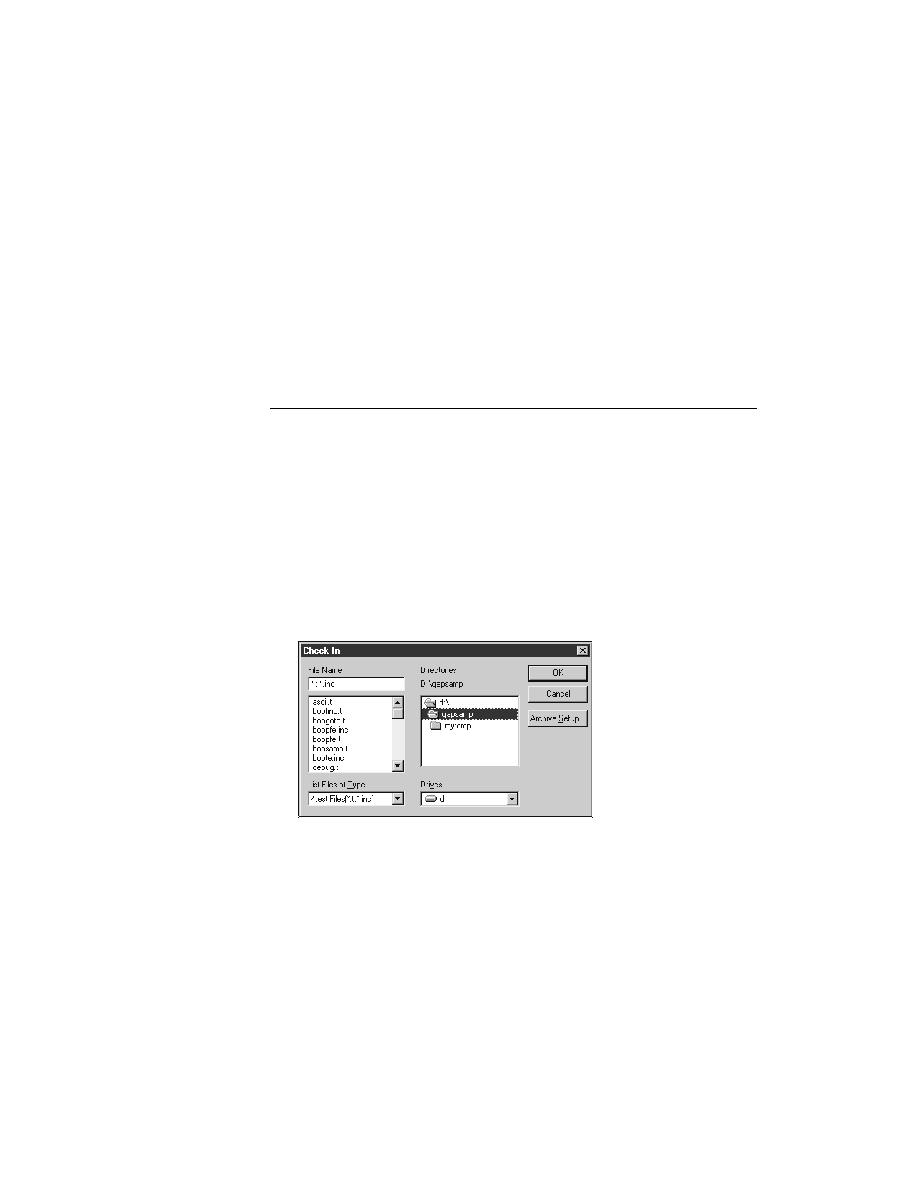

PVCS - To display the Revisions and Version Labels
You can retrieve earlier versions by using either a revision number or a
version label. Multiple files can be checked out with a common version
label, but not with a common revision number. To display the Revisions
and Version Labels list boxes, click the Advanced button.
the Lock To Modify radio button (only the most recent version of a
file can be locked for modification).
The archive keeps track of who made the changes, when they were done, and
any comments you want to enter about the changes that were made. To be
able to check a modified file back into an archive, it must have first been
checked out with a lock.
files you have selected doesn't yet have an archive, see "Creating a new
file archive" below before proceeding.)
assign a version label to the new revision of the file(s) being checked in.